Putting your screenshots in
Show your product in the scenes that have a screen.
3 steps
- 01
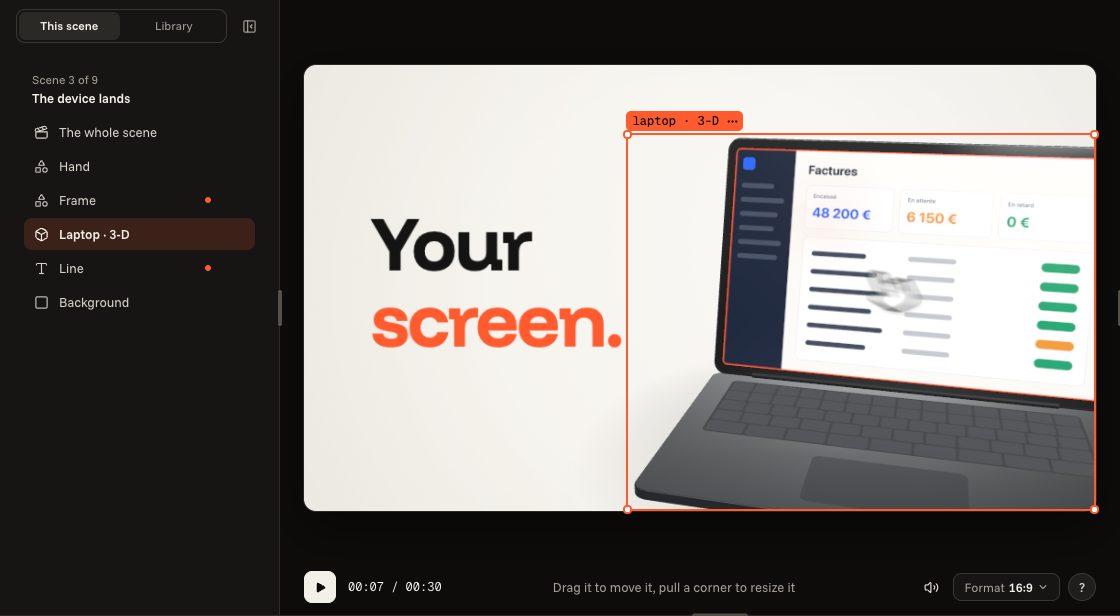
Find the scenes that take one
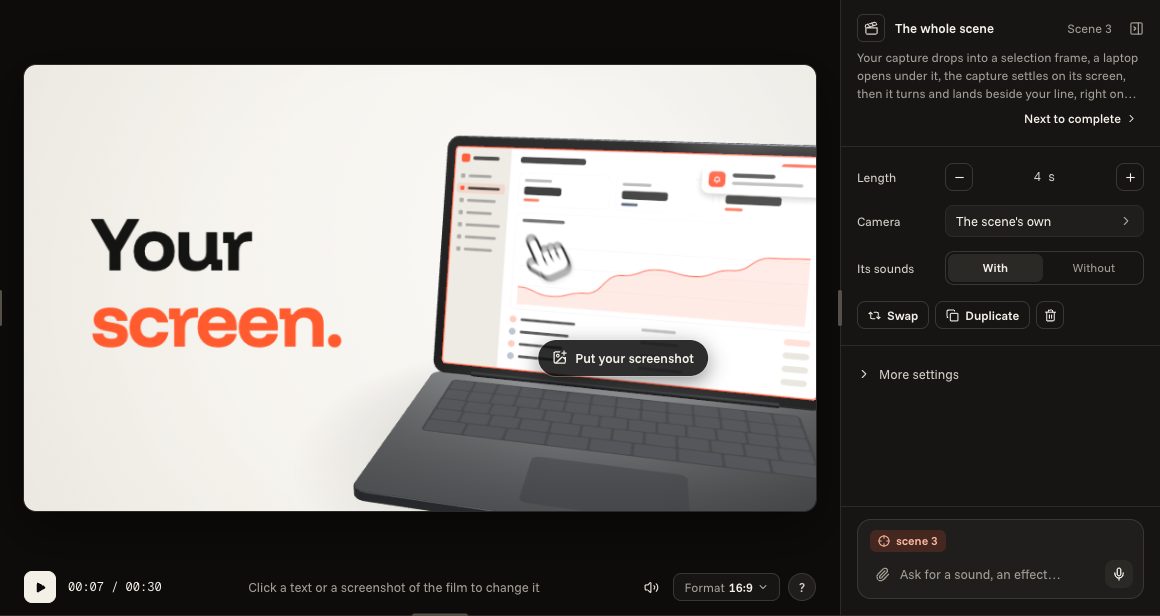
A scene that shows a screen displays an example picture and the “Put your screenshot” button. “To complete” counts them, and an orange dot marks them.
- 02
Put your screenshot in
Click “Put your screenshot”, or drop the file onto the film: PNG, JPEG, WebP, SVG or GIF, 20 MB at most. As it comes off your screen, it is enough: it is framed for you.
- 03
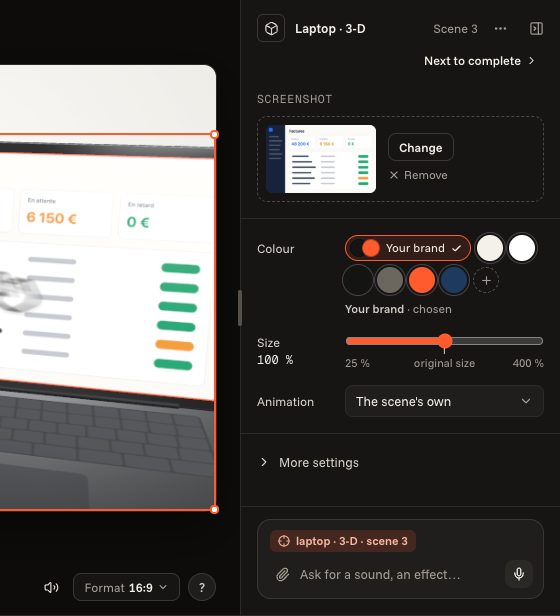
Change it whenever you like
Choose the screen in the picture: on the right, under “Screenshot”, “Change” puts another one in and “Remove” takes it out. On the free plan, your pictures and sounds stay in your browser; a paid plan also keeps them on your account.